Voice Input
Voice Input Settings
Accomplish supports speech-to-text input so you can dictate prompts and follow-up messages.
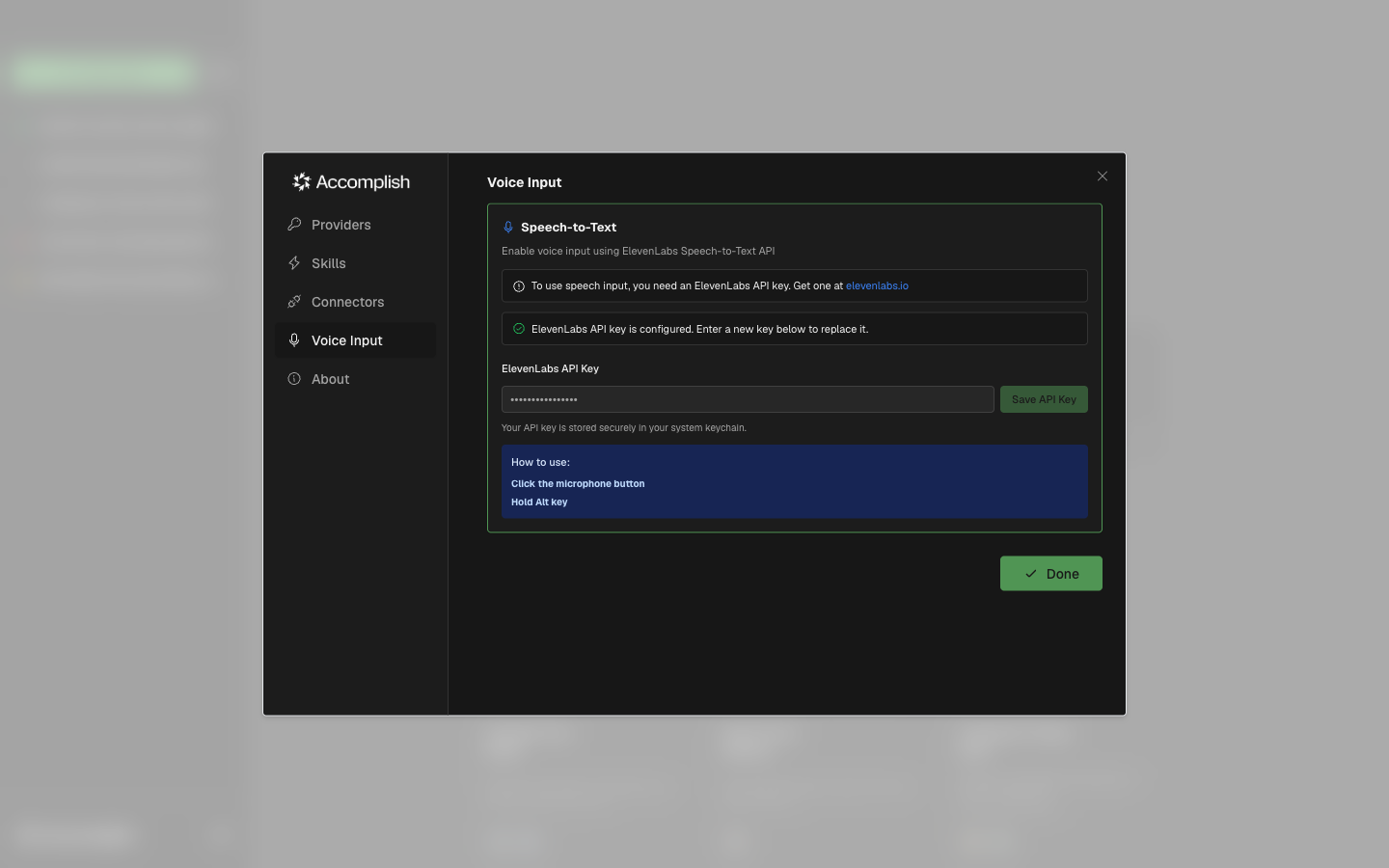
Typical Flow
- Open Settings → Voice Input
- Add the required speech-to-text API key
- Return to the prompt area or follow-up input
- Use the microphone button to dictate
Troubleshooting
- If the microphone button opens settings, voice input is not configured yet.
- Recheck API key and provider instructions in the Voice Input panel.